Instant Messaging
Frequently used instant messaging operations are presented together, making it easy to arrange them according to your own workflow.
Arrange frequent conversations, groups and files in a familiar chat interface, and choose the client for each device.
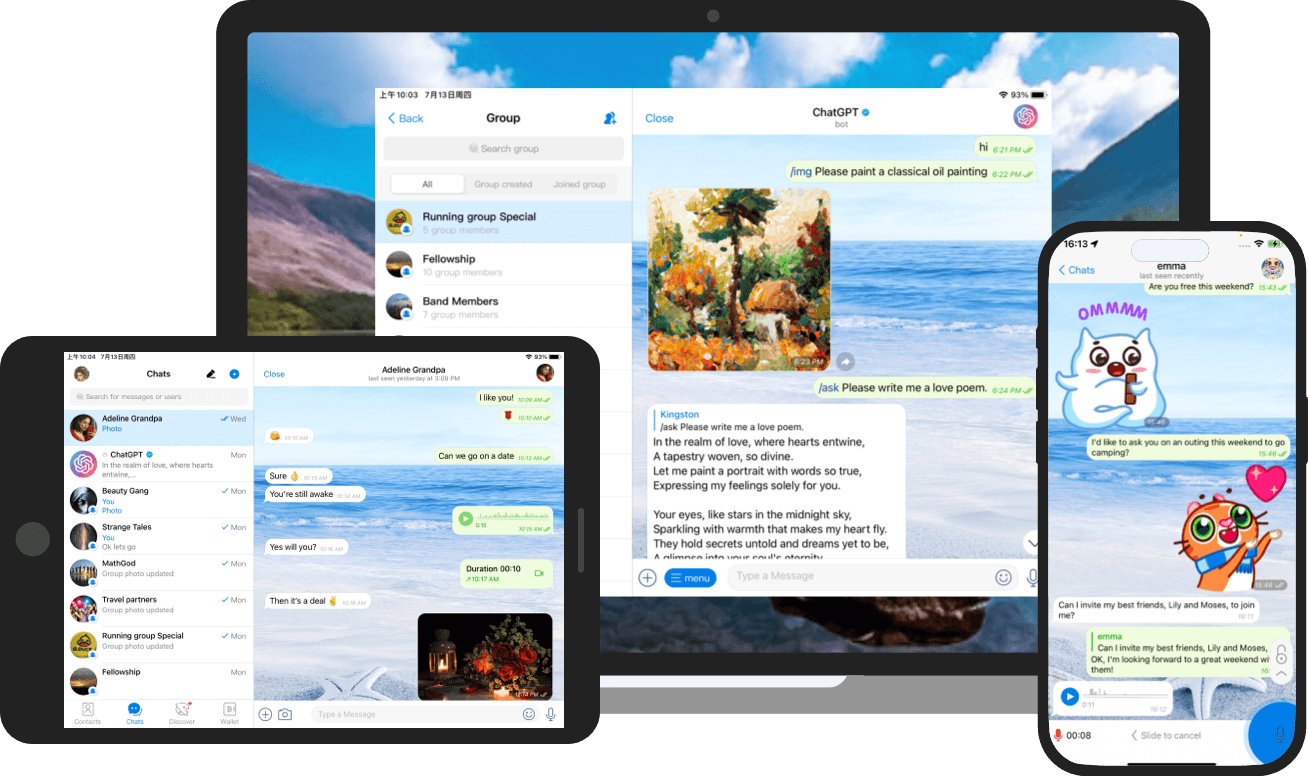
From getting started to daily operations, clearly present the information needed at each step.
Frequently used instant messaging operations are presented together, making it easy to arrange them according to your own workflow.
Common actions for group communication are presented together, making it easy to arrange them according to your own workflow.
Common actions for file sharing are presented together, making it easy to arrange them according to your own workflow.
Common actions for multi-device login are presented together, making it easy to arrange them according to your own workflow.
Put common entries, operation statuses, and related instructions in a familiar interface, and choose the next step based on the current task.
Choose the right device versionCheck the current system and chip type, then select the corresponding client version.
Verify the installation file information and follow the installation wizard to complete the setup step by step.
Open the client and arrange frequently used functions and operations according to your actual needs.
Go to the Download Center and select the corresponding version based on your device system and chip name; different installation methods are listed separately.
Only client download entries that have been released are displayed. If the version you need is not currently available, please check back later.
Open the client, review the getting-started instructions in the interface, and then set things up step by step according to your actual tasks.
Choose the right Potato version for your device.
Go to Download CenterPotato brings messages, files, and tasks together in one clear interface, helping you switch smoothly between phone, tablet, and computer. No complex setup required — open and use immediately, suitable for personal organization, group discussions, and cross-device sync.
Automatically sync conversations between your phone and computer, so you can continue handling unread content even after leaving your desk.
Archive frequently used documents, images, and links by conversation, reducing the time spent searching in multiple places.
Set reminder points for important messages, letting to-do items naturally blend into your daily communication flow.
Download and open Potato on each device, then complete verification with the same account to sync automatically. Make sure your network is stable and allow the necessary permissions when logging in for the first time.
It is recommended to establish a fixed lookup habit by project or conversation, archiving related images, documents, and links nearby. Important content can have reminders added to avoid being buried by subsequent messages.